
Thursday, May 22, 2008
Seeing Strange Software Glitches? Disable Video Enhancement
Posted by Jason Dunn in "Zune Software" @ 09:48 AM
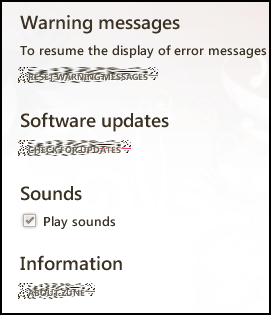 This tip requires a bit of an explanation. When I'm upstairs in my house, I use the Zune software on an HP Slimline computer, one that l upgraded to have DVI output because it stupidly shipped with only VGA output (but that's a rant for another day). Because it's a slimline computer, and because I wanted to keep the noise levels as low as possible, I put a low-profile, passively cooled video card in it - an old GeForce 6200 I had kicking around. Yeah, that's a pretty old card!
It works just fine with Vista though, and since no game playing is done on this computer, having a killer video card wasn't a priority - I just wanted something silent with DVI. It's worked out just fine, but the Zune software kept giving me glitches - the screen shot to the right shows you the kind of things I was seeing.
If I put the cursor over the glitchy zones, they'd usually resolve to what they were supposed to be. I also saw problems with the drop shadows under albums, and all sorts of issues with the marketplace. If you're seeing anything like this, here's the fix.
- Load up the Zune software and click on SETTINGS in the upper right corner.
- On the left-hand list of options, click on DISPLAY. Under the GRAPHICS AND VIDEO ENHANCEMENT section, click on the the DISABLE VIDEO ENHANCEMENT button.
- You might not be able to read what it says, but there's only one button there, so click it. There may be a pop-up window that explains what's about to happen - click OK in that window.
- Then click OK in the lower right-hand corner, then exit the Zune software.
- Start it up again, and this particular problem should be solved.